Setting up OneLogin Protect for iPhone/iPad
You will be prompted to set up “OneLogin Protect” the first
time you log in to OneLogin.
1.
Once
you try to log in to https://wmc.onelogin.com from your browser, your
login screen will prompt you to set up Multifactor Authentication (MFA).

Select an authentication method
of OneLogin Protect. The login screen displays the following:

Make sure that iOS &
Android is selected under Select Device.
2.
Install
the OneLogin Protect app on your iPhone or iPad.
To install:
1.
On
your phone, go to the App Store.
2.
Search
for OneLogin Protect.
3.
Click
the Get button.
4.
Click
the Install button.
3.
Ensure
that your iPhone or iPad is connected to the internet
Important! Your device
must be connected to the internet for registration with OneLogin to succeed.
4.
Launch
the OneLogin Protect app.

5.
On
the welcome screen, click Set Up Now.

6.
If
you're prompted to permit OneLogin Protect to use your camera, click OK.
7.
From
the Scan Barcode screen, use your iOS device camera to scan
the barcode on the Add 2-Factor Method dialog that is still
open on your browser.

Focus the box over the barcode.
When the barcode is successfully scanned, a big green arrow appears inside the
box, indicating that your device is paired (registered) to your OneLogin
account.

8.
The
OneLogin Protect home screen appears:

If you are prompted to Enable
Push Notifications, click Enable.
You are now ready to use OneLogin with Multifactor
Authentication (MFA). The next time you try to log into OneLogin from an
unknown browser, you will be prompted to open the app and authenticate your
session.
Continue
reading if you would like to see the login process with MFA.
1.
Log in to OneLogin using your user name and
password.

2.
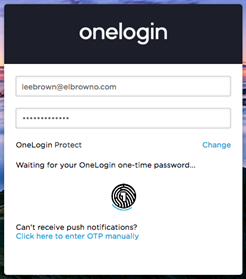
The login screen notifies you that it's waiting for
a one-time password.
3.
OneLogin sends a notification to your mobile phone
or tablet, asking you to accept or deny the login request.
If
your phone is unlocked, you'll see the following notification:
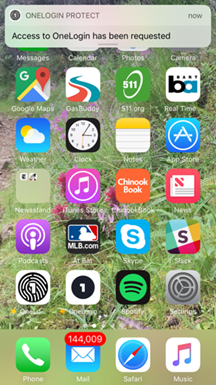
Click
it to view the request screen:

Tip. You
can also just slide your finger down the alert banner to expand it and select
Accept or Deny directly from the notification.
4.
Click Accept.
5.
OneLogin Protect sends the OTP to OneLogin and logs
you in.
You can also enter the OTP code manually into
your login screen. Sometimes you have to do this if you've waited too long to
accept the login request.

And you can grab the OTP code from the OneLogin
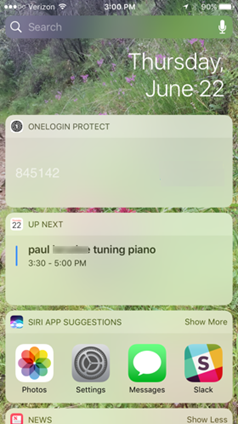
Protect widget on your widget screen (swipe right from the device home screen):